 OpenAI GPT Image
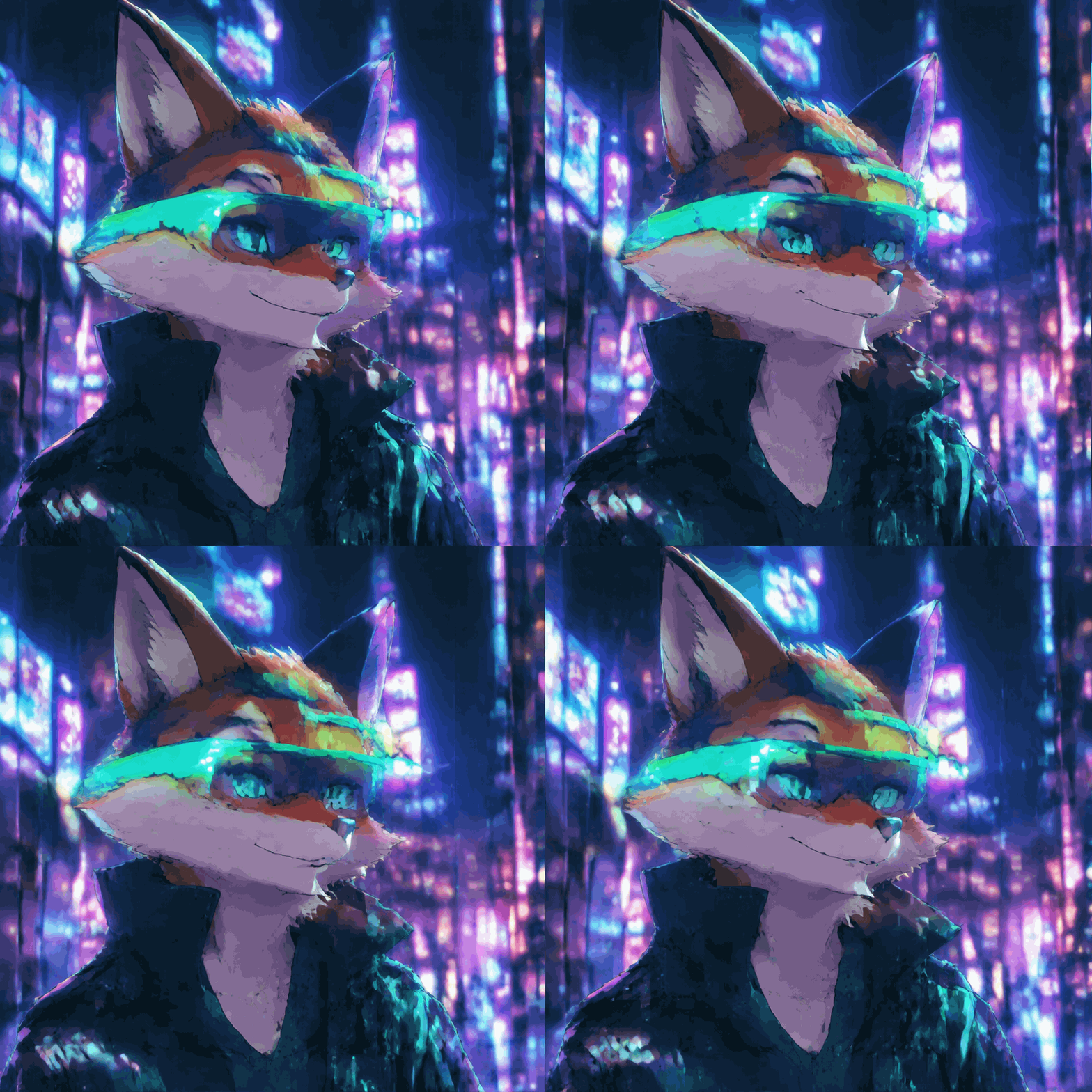
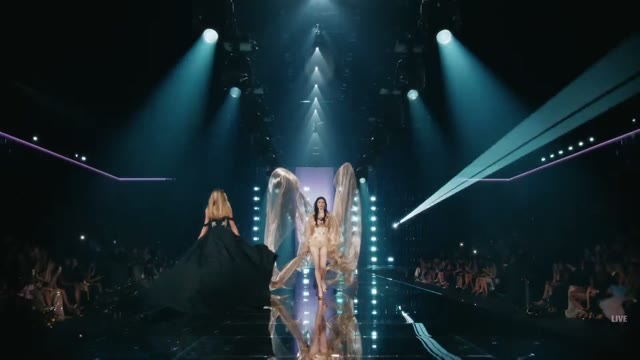
GPT Image 2.6 for Animated GIFs, Crisp SVGs & AI Visuals
Generate looping animated GIFs and scalable SVG vectors with GPT Image 2.6 right from a prompt, or switch to static images, AI video, and vendor-grouped LLMs in one workspace.
0/32000
Examples
1 / 36Trending
Drag to compare · Choose a template
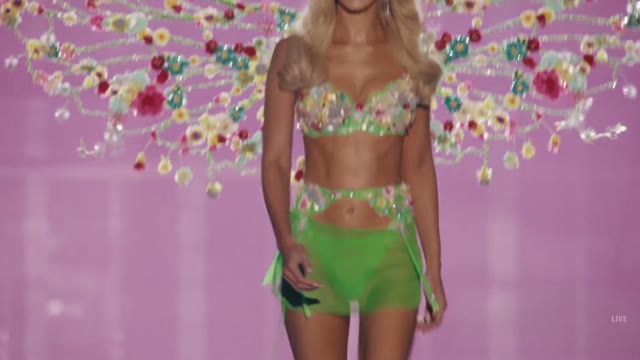
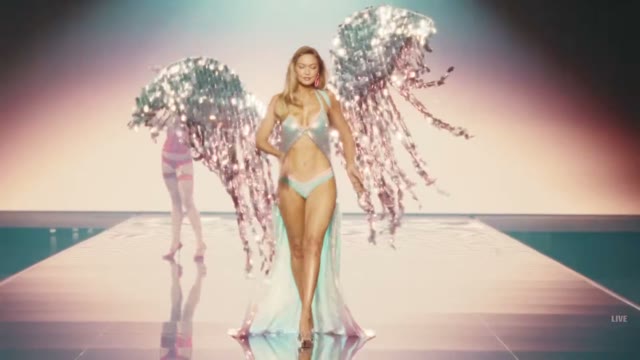
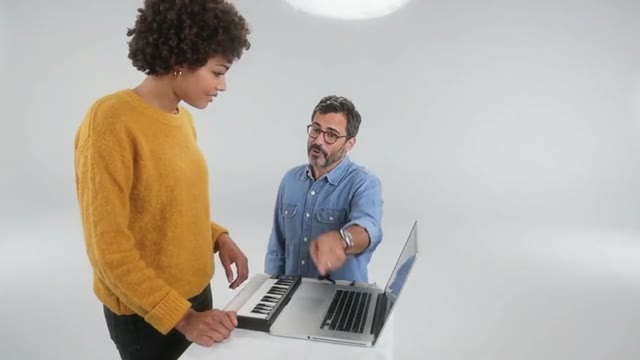
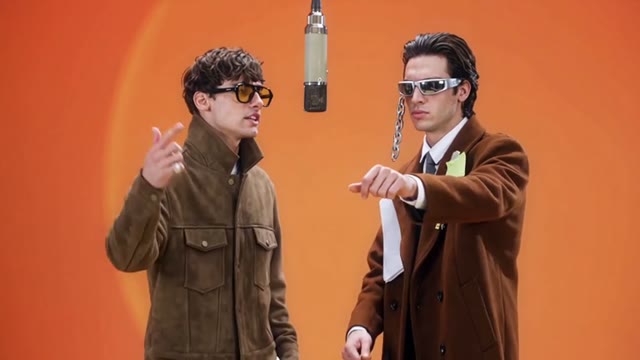


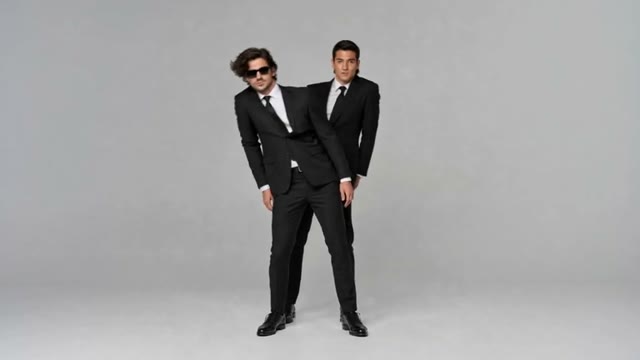


01
Start with GPT Image 2.6 animated GIFs, SVGs, and static stills
A campaign, product post, or UI prototype often needs more than a flat still: a looping animated GIF that grabs attention, a crisp SVG graphic that scales cleanly, or a high-resolution image ready for layout. OpenAI GPT Image puts GPT Image 2.6 at the center of one creative workspace.
The homepage opens directly in the GPT Image 2.6 Flare image studio with animated GIF selected by default. Switch the output format to SVG for native vector generation, pick PNG/JPEG/WebP for static images, or explore GPT Image 2.6 Sunburst, Seedream, Nano Banana, vendor-grouped LLMs, and AI video models without leaving the workspace.
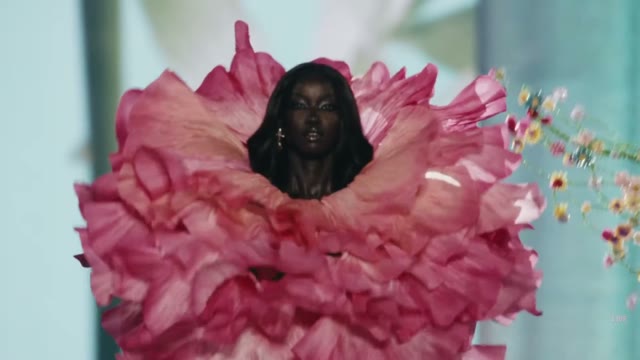
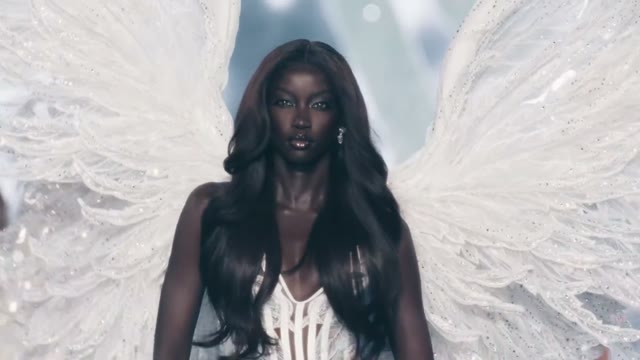
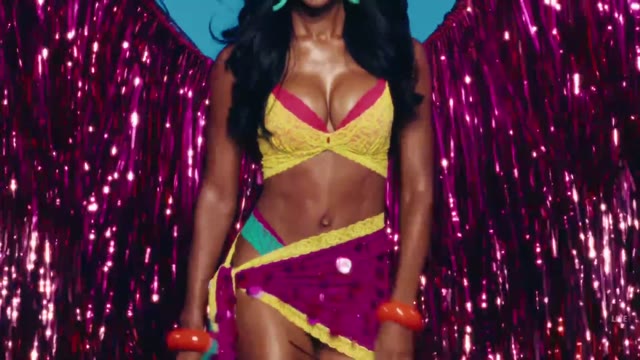
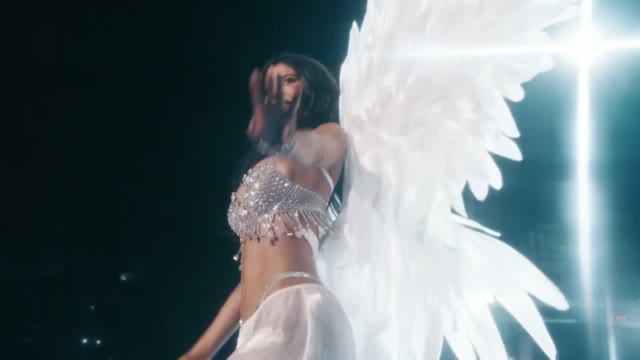
Browse the paired GPT Image 2.6 GIF examples right beside the prompt box and click Use this prompt to load any direction as a starting point. Review the selected model, output format, resolution, and live credit quote before generating.
Every generated GIF, SVG, still, or video can be previewed inline, saved to My Assets in cloud storage, downloaded directly, or sent into the image-to-video workspace when you want full-motion clips.
MiniMax H3 Max · 768P · Native Audio
Faster renders. Sharper direction.
H3 Max is a fal post-trained variant of the open-weight H3 base, built for fast text-to-video, first-to-last-frame animation, and structured long prompts with native synchronized audio. When testing H3 Max, record the inputs, duration, and review criteria together. OpenAI GPT Image is an independent tool, not an official MiniMax or fal website.
Text to VideoImage to Video768P5–15sNative Audio
≈2.5sbackend inference for a 5s 768P clip; queue and prompt expansion add to total wait time.
02
How to create animated GIFs, SVGs, and visuals with GPT Image
Start by describing the core subject, motion beat, and visual style. For GPT Image 2.6 animated GIFs, short concrete loops—such as rising steam, rotating glass prisms, blinking neon signs, or unfolding origami—produce cleaner frame-to-frame motion than overcrowded scenes.
Need a clean icon, badge, or editorial diagram instead? Switch the format toggle to SVG and GPT Image 2.6 stays selected automatically so you can generate clean scalable vector artwork on the same canvas.
- STEP 1
Pick GPT Image 2.6 & output format
Start with GPT Image 2.6 Flare in Animated GIF mode by default, toggle to SVG for scalable vectors, choose PNG/WebP/JPEG for stills, or switch to Video and vendor LLMs.
- STEP 2
Write a prompt or click Use this prompt
Describe the subject, framing, lighting, and motion loop—or load any paired GPT Image showcase example and customize it for your own project.
- STEP 3
Review settings and transparent credits
Check the live credit quote (1 cent = 1 credit) along with aspect ratio, resolution, reference images, or video duration before submitting.
- STEP 4
Preview, save, download, or animate further
Inspect your looping GIF, SVG, still image, or video in the studio, save it to cloud storage, download the original file, or send a still straight into AI video.

Input
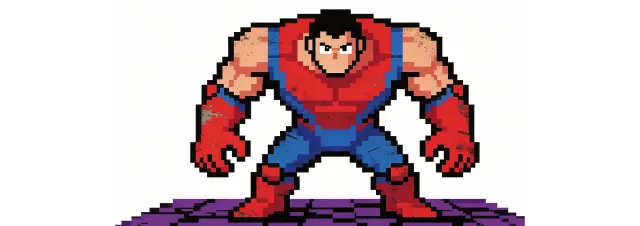
Image 1
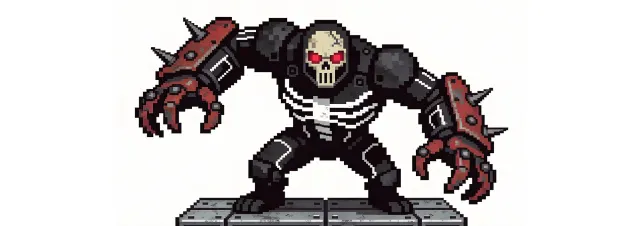
Image 2
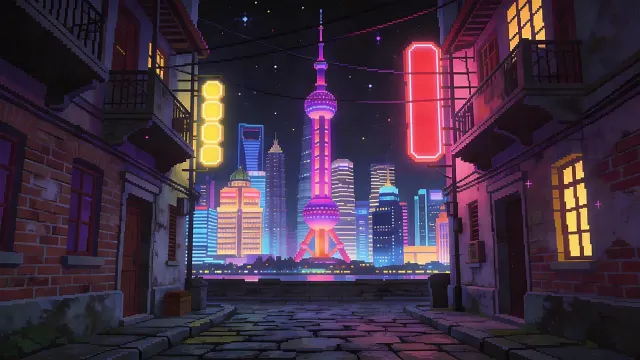
Image 3
Video 1
Audio 1
Output
Prompt:Using the character actions and camera language from @Video 1, generate a combat sequence featuring the characters from @Image 1 and @Image 2, set against the background of @Image 3. The fight choreography and visual style should emulate the pixel-art, side-scrolling combat of the classic game Contra, including retro movement rhythms and arcade-style impact beats. Apply the background music from @Audio 1, and synchronize additional combat sound effects—hits, jumps, and weapon actions—with the on-screen fighting motions to enhance intensity and immersion.
03
Five creative workflows built around GPT Image
Native animated GIFs with GPT Image 2.6
Generate looping 4-frame animated GIFs directly from a text prompt or reference edit using GPT Image 2.6 Flare and GPT Image 2.6 Sunburst. No timeline keyframing or third-party GIF converter required.
GIF outputs render at 832x832 with smooth 200ms frame pacing, play inline immediately in the workspace, persist in your asset history, and download as standard .gif files ready for social posts, docs, and web embeds.
Need to iterate? Edit an existing image into a subtle looping GIF or load a showcase prompt with Use this prompt and swap the subject or color palette.
Scalable SVG vector generation on GPT Image 2.6
Switch the format selector to SVG and GPT Image 2.6 generates clean vector artwork suitable for logos, icons, stickers, UI illustrations, and print-ready marks.
Every SVG output is sanitized for safe browser preview, saved to your cloud library, and downloadable as a real .svg file that stays sharp at any screen size.
Combine SVG drafts with static PNG/WebP renders from the same prompt when building a complete brand or product kit.
Static AI images & reference editing across top models
Beyond animated GIFs and SVGs, the Image studio supports static PNG, JPEG, and WebP generation and multi-reference editing across GPT Image 2.6, GPT Image 2.5, Seedream, Nano Banana, Flux, and more.
Use dedicated task pages for portraits, product photography, logos, anime, posters, and mockups, then compare output resolutions and live credit quotes before running.
Take any finished still straight into image-to-video when a project grows from static art into motion.
AI video, Kie Seedance 2.5 Face Swap & vendor LLMs
Switch to the Video tab for MiniMax H3 Max, Veo 3.1, Seedance, Kling, Wan, and AI Video Face Swap powered by Kie Seedance 2.5 with transparent per-second pricing.
Open the model picker in either Image or Video to explore 20 vendor-grouped LLMs (OpenAI, Anthropic, Google, xAI, DeepSeek, Qwen, Meta, Moonshot, NVIDIA, and more) that generate structured visual scenes rendered right in your browser.
Every model displays its exact inputs, controls, and credit quote before you submit.
Free browser image tools & AI text workflows
Already have an image that just needs quick preparation? Use built-in browser tools to compress, resize, crop, rotate, convert, watermark, or remove backgrounds without spending generation credits.
Some AI background removal tools download a model into your browser, while standard file utilities run locally for fast turnaround.
Pair your visuals with Humanize AI rewriting when you need natural, friendly, or professional copy around a launch.
Camera moves you can direct
Two stills become one shot
The same character, shot after shot
Sound generated with the picture
One look held across every shot
It hits the beats in order
One continuous take, no cuts
Playable-looking game footage
A line to camera, lip synced
Claymation frog with pancakes
Hummingbird at a trumpet flower
Espresso, macro
04
Workflow examples
Illustrative ways to plan, generate, and review your work.
01
Product image draft
Illustrative workflow
Begin with a product photograph and a focused image-editing brief. Compare the draft with the original for shape, labels, and proportions before placing it into a listing. Add approved logos and exact copy in your design application.
02
One short product clip
Illustrative workflow
Choose a video model and describe one small action, such as a careful object turn. Review the available duration, resolution, and credits. Check the completed take for object continuity and sound before using it in a larger edit.
03
Editorial illustration
Illustrative workflow
Give the image workspace a subject, viewpoint, and visual metaphor that supports your article. Preview the result inside the intended layout. Adjust the crop or composition when it competes with the headline or obscures an important detail.
04
Lighter image attachments
Illustrative workflow
Sign in and use Compress Image when a picture has the right dimensions but a large file size. Compression runs in the browser; input and output images are saved to your account. Compare the result before downloading individual files or a ZIP.
05
A clearer text draft
Illustrative workflow
Paste a draft into Humanize AI and select Natural, Friendly, or Professional tone. Review the rewrite for meaning, names, figures, and technical terms. Copy or download the version you have checked; detector scores and publication outcomes are not guaranteed.
06
A visual series
Illustrative workflow
Record the palette, viewpoint, lighting, and subject scale in a reusable brief. Supply relevant references where the selected image model supports them. Compare the images together, then revise specific differences instead of assuming automatic campaign-wide consistency.
Featured on
TRENDING
Browse all ↗More Trending Templates
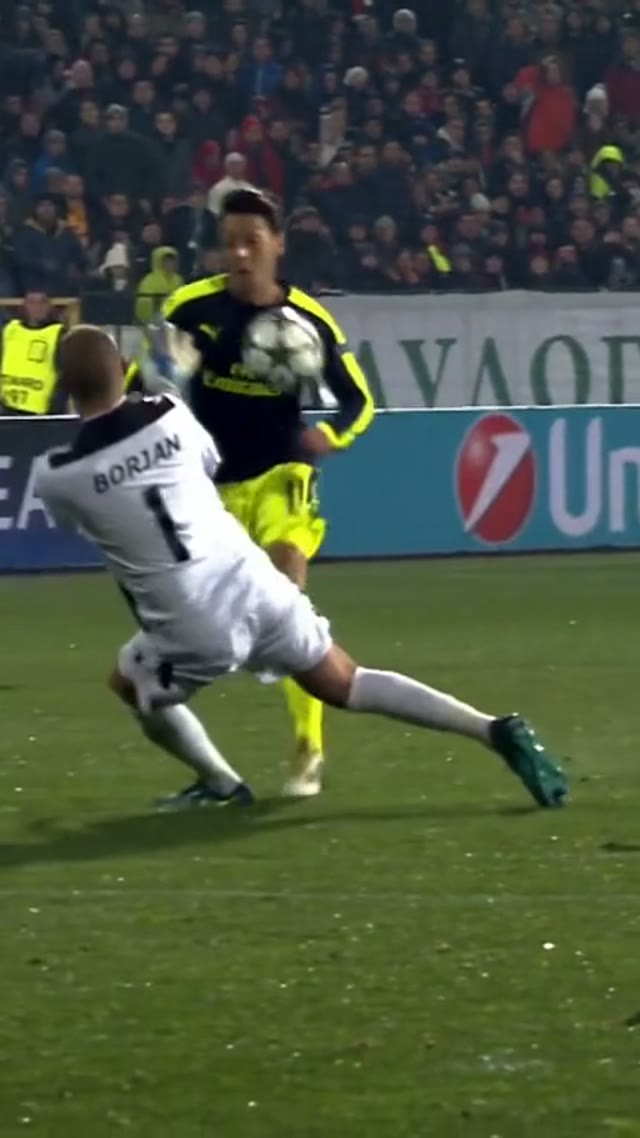
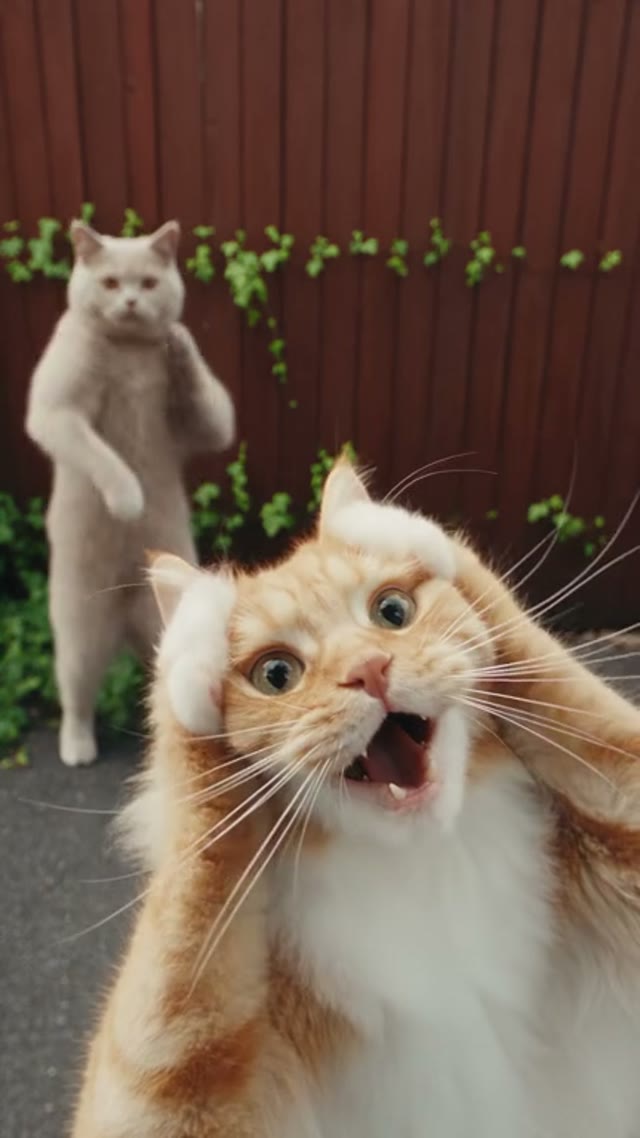
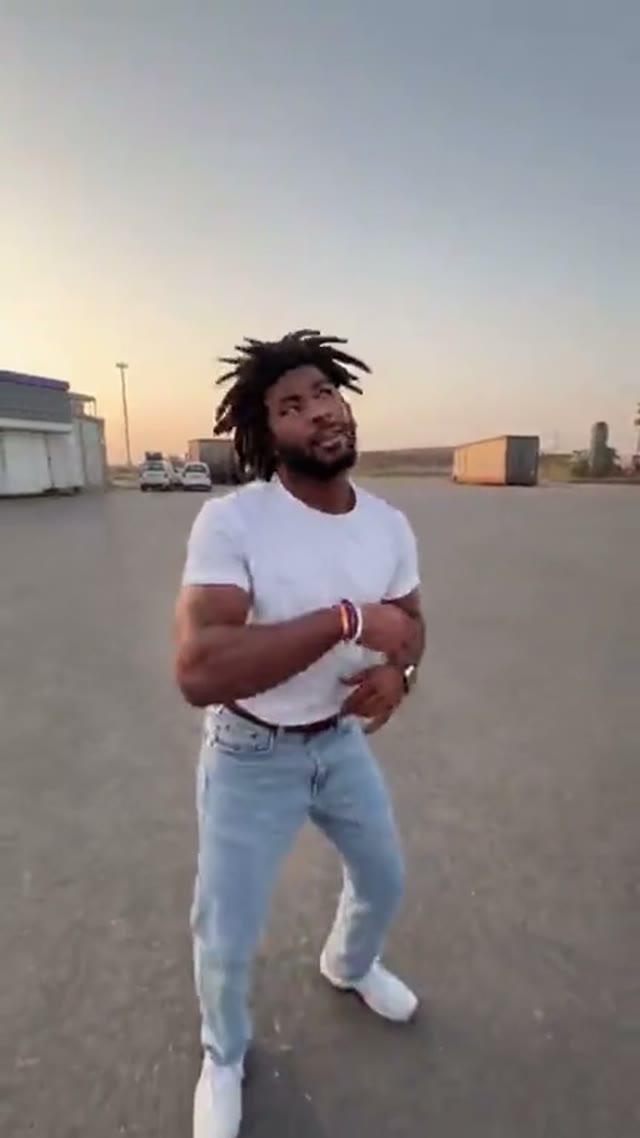
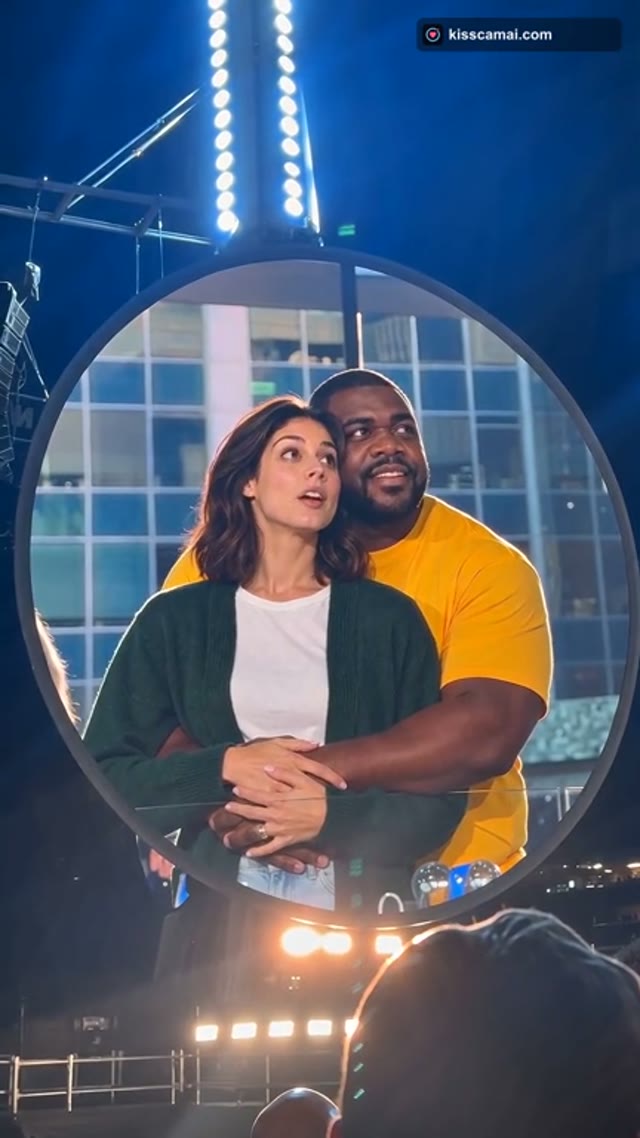
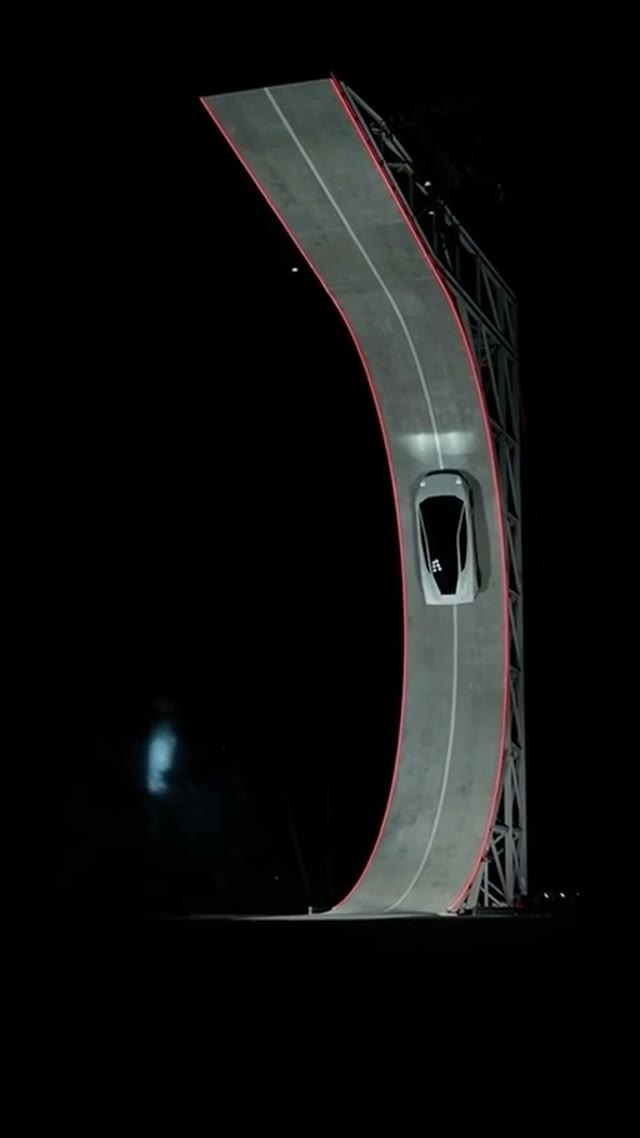
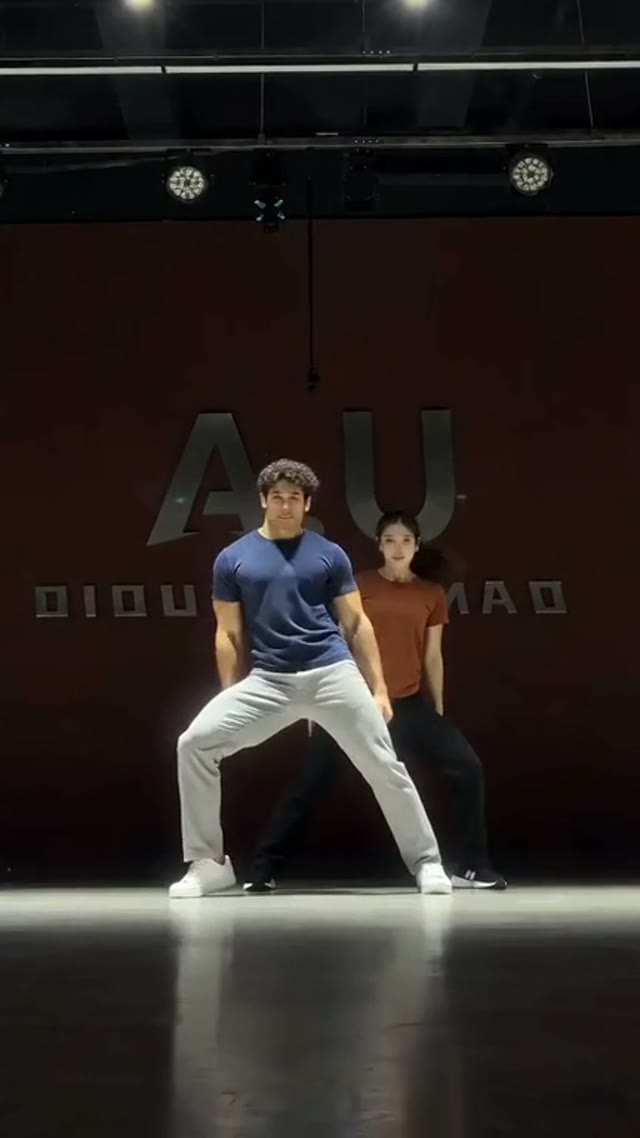
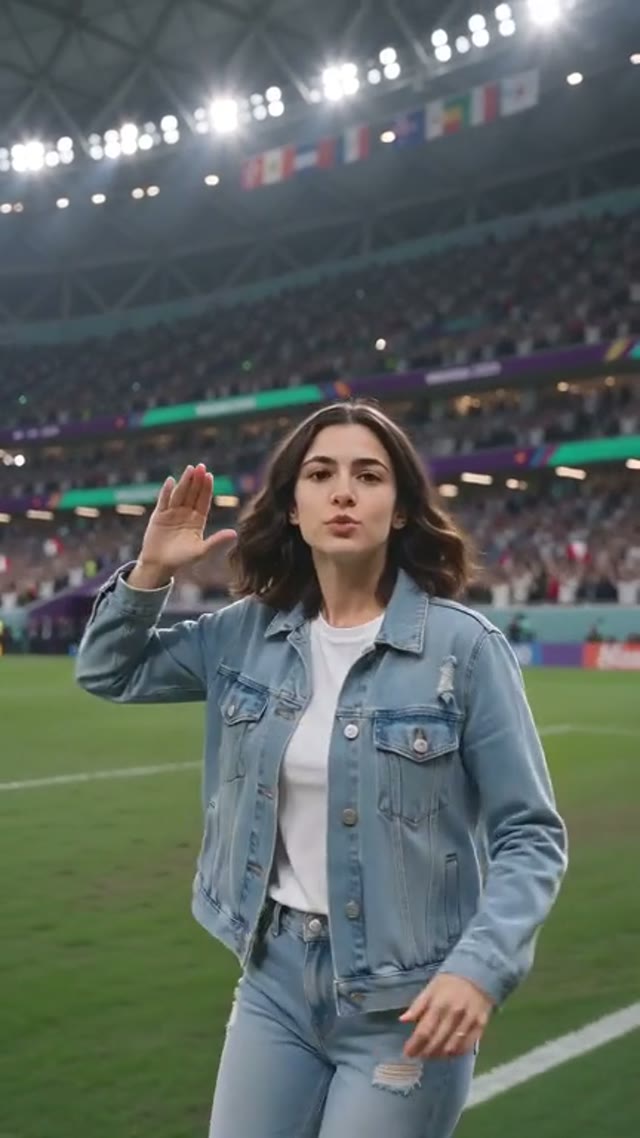
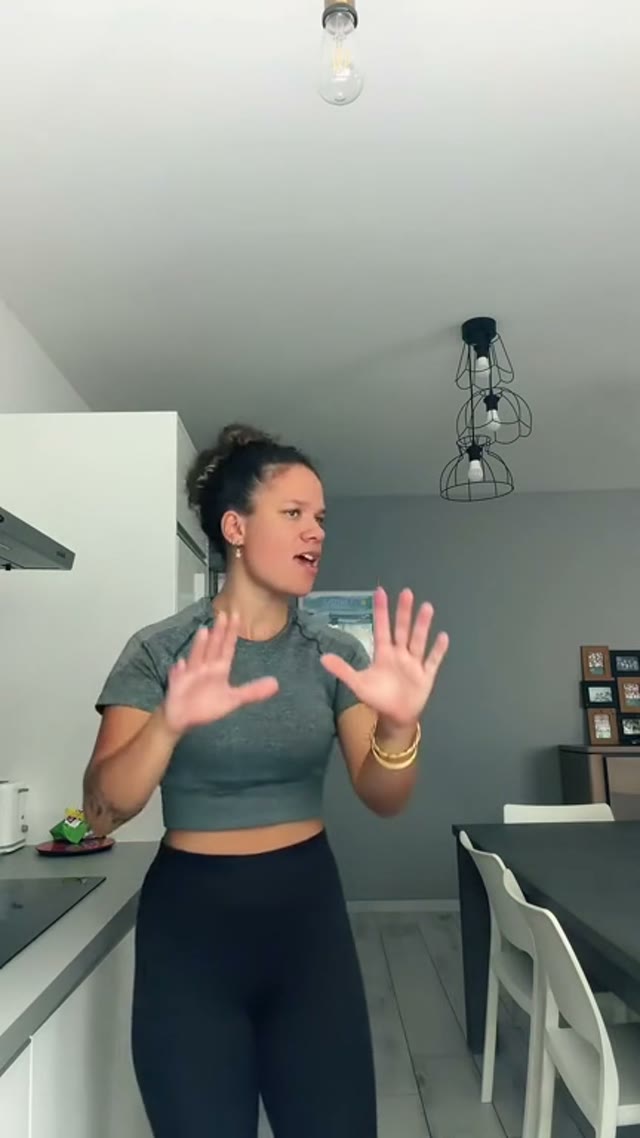
OpenAI GPT Image Pricing and Credit Plans
Cancel anytime
Trending face-swap templates cost 300 Credits per video, including full-length Bad Times and every available format. Other tools keep their own quotes. Existing MV tickets remain usable until their original expiry; new tickets are no longer sold.
Pay once annually; receive 1/12 of your annual Credits each month. The first allocation arrives after payment, then monthly. Tax included. Each allocation expires at the next subscription month or paid-year end.
Lite
50% off0.025 / credit
$358.8$179 / year50% off
$14.9/month equivalent · Billed $179· Save $179.8
Annual total: 7,200 credits, issued monthly
600/month
Video Models
MiniMaxSeedanceWanGrok ImagineKling


Image Models
SeedreamGPT ImageNano Banana


- Includes MiniMax H3 and all premium models
- Up to 1 batch generation task
- Standard generation speed
- Standard generation success rate
- Standard customer support
- Commercial Use License
Standard
50% off0.017 / credit
$598.8$299 / year50% off
$24.9/month equivalent · Billed $299· Save $299.8
Annual total: 18,000 credits, issued monthly
1,500/month
Video Models
MiniMaxSeedanceWanGrok ImagineKling
Image Models
SeedreamGPT ImageNano Banana
- Includes MiniMax H3 and all premium models
- Up to 4 batch generation tasks
- Priority processing speed
- High generation success rate
- Priority customer support
- Commercial Use License
Pro
50% off0.014 / credit
$1198.8$599 / year50% off
$49.9/month equivalent · Billed $599· Save $599.8
Annual total: 43,200 credits, issued monthly
3,600/month
Video Models
MiniMaxSeedanceWanGrok ImagineKling
Image Models
SeedreamGPT ImageNano Banana
- Includes MiniMax H3 and all premium models
- Up to 10 batch generation tasks
- Fastest generation speed
- High generation success rate
- Dedicated account manager
- Commercial Use License
Max
50% off0.012 / credit
$2398.8$1,199 / year50% off
$99.9/month equivalent · Billed $1,199· Save $1,199.8
1x
1x2x3x4x5x
Annual total: 96,000 credits, issued monthly
8,000/month
Video Models
MiniMaxSeedanceWanGrok ImagineKling
Image Models
SeedreamGPT ImageNano Banana
- Includes MiniMax H3 and all premium models
- Up to 10 batch generation tasks
- Fastest generation speed
- High generation success rate
- Dedicated account manager
- Commercial Use License
Pay safely and securely with






















05
FAQ
Inputs, outputs, credits, boundaries.
FAQ
Frequently asked questions about OpenAI GPT Image
Everything you need to know about GPT Image 2.6 animated GIFs, SVG generation, credits, supported models, and our independent workspace.
OpenAI GPT Image is an independent creative workspace centered on GPT Image 2.6 animated GIF, SVG vector, and static image generation, alongside AI video models, vendor-grouped LLMs, Kie Seedance 2.5 Face Swap, and browser image tools.
GPT Image 2.6 Flare supports native animated GIF and SVG generation in addition to static images. We default the homepage studio to GIF on GPT Image 2.6 Flare so you can create looping motion graphics immediately, while switching to SVG, PNG, JPEG, WebP, or Video takes one click.
Credits follow a transparent 1 cent = 1 credit display rule, and the studio always shows the exact credit quote for your chosen model, format, resolution, or duration before you generate. Subscriptions grant monthly credit allocations and one-time credit packs remain valid for 365 days.
Yes. Every completed GIF, SVG, static image, and video is previewed in the workspace, stored in your cloud My Assets library, and available for direct original-file download.
Select any vendor LLM from the Image or Video model picker to generate structured code-driven motion or still scenes rendered directly via browser Canvas into downloadable PNG or MP4 files, without changing the workspace layout.
No. OpenAI GPT Image (openaigptimage.com) is an independent third-party creative studio that integrates GPT Image 2.6 and other leading AI models through API providers. It is not affiliated with or endorsed by OpenAI or other model vendors.
OpenAI GPT Image support: hi@openaigptimage.com
06
CTA
Turn evidence into generation.
Start creating
Create your next GPT Image GIF, SVG, or visual now
Pick a paired example with Use this prompt or write your own brief in the GPT Image 2.6 workspace above. Preview looping GIFs, crisp SVGs, static stills, and AI videos in one place.
Keep full control over format, resolution, and transparent credit quotes from first draft to final download.
Start creating with GPT ImageReview the selected model
Check credits before generation
Inspect your result